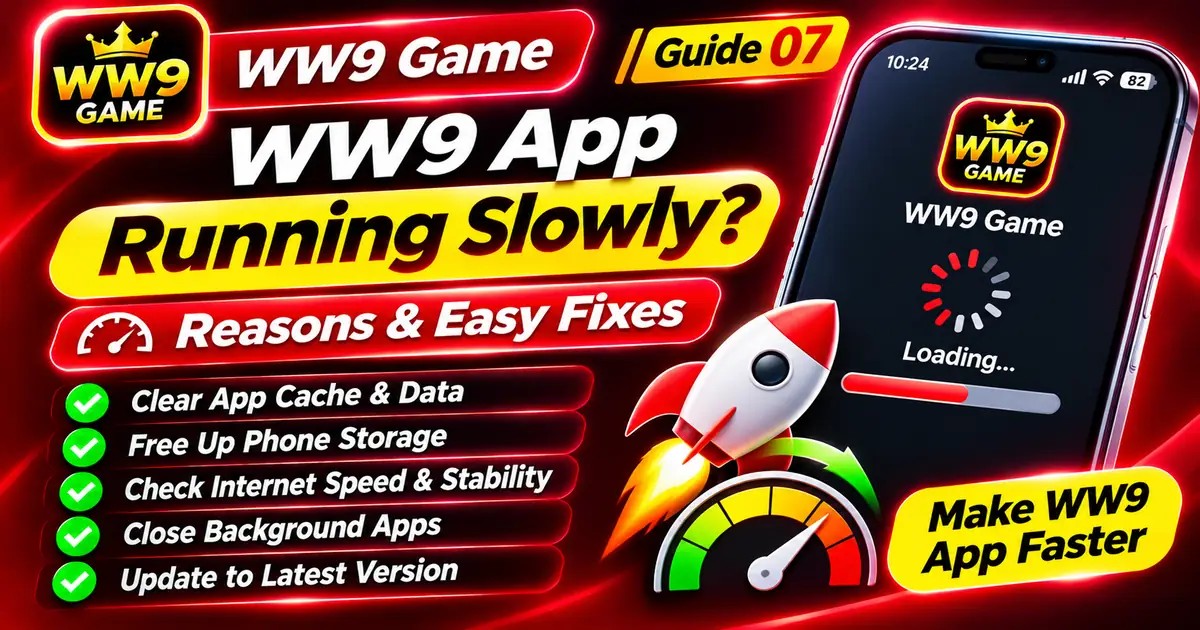
Identify Where WW9 Game Feels Slow
Different symptoms point to different areas of the device.
- Slow launch: the home screen takes longer than usual to appear.
- Delayed tapping: menus respond after a noticeable pause.
- Stuttering animation: screen movement is uneven even when a page opens.
- Slow network content: an on-screen element waits for data to load.
- Overall sluggish phone: multiple applications are affected, not just WW9 Game.
Record the exact screen and whether the problem happens every time. This helps separate device performance from a connection delay.
1. Compare WW9 With Other Android Apps
A slow app does not automatically mean the same issue is affecting the whole device.
- Open a trusted lightweight application and check how quickly it responds.
- Try navigating Android Settings or the phone’s home screen.
- If several apps are slow, focus on storage, memory or system updates.
- If only WW9 is slow, focus on its temporary files and network-dependent screens.
2. Check Internet Stability and Latency
A connection can show a strong signal while still delivering slow responses.
- Open a familiar website to verify that pages load consistently.
- Compare Wi-Fi and mobile data when both are available.
- Move to an area with a stronger signal if the connection drops.
- Avoid interpreting a single speed-test number as proof of app performance.
If the app remains on one loading screen instead of responding slowly, see the WW9 loading-screen guide.
3. Free Up Android Device Storage
Almost-full storage can slow down temporary files, updates and other phone operations.
- Open Settings → Storage (names vary by manufacturer).
- Review how much free space remains.
- Remove duplicate downloads and unused files you recognize.
- Avoid deleting important photos, documents or account data without a backup.
4. Reduce Background App Pressure
Low available memory may make switching between apps slower.
- Close unused apps that are actively consuming resources.
- Pause unusually heavy downloads or background tasks.
- Restart the phone rather than using unfamiliar “RAM booster” applications.
- If Android shows a memory or battery usage view, review it for unusual activity.
Android normally manages memory automatically. Force-closing every application repeatedly is not necessary.
5. Restart WW9 and Your Phone
A normal restart can clear temporary performance problems without deleting stored data.
- Close WW9 completely from recent apps.
- Open it again and check the same screen.
- If the issue remains, restart your Android phone.
- After reboot, compare performance before opening many other applications.
6. Clear Temporary WW9 App Cache
Temporary cache files can occasionally become outdated or cause display delays.
- Open Settings → Apps → WW9 Game.
- Choose Storage or Storage & cache.
- Select Clear cache where available.
- Reopen WW9 and test the specific slow action again.
Clear cache and Clear storage/data are different. Clearing storage can remove local settings and sign-in data; do not use it casually.
7. Review Battery Saver and Background Restrictions
Power-saving modes may limit CPU activity or network work in the background.
- Check whether Battery Saver is currently enabled.
- Review the phone’s app-specific battery settings.
- Test normal device performance without changing protections you do not understand.
- Avoid disabling device security or essential system restrictions to speed up an app.
8. Check Heat and Extended Device Use
Phones may reduce performance when they become hot.
- If your phone is unusually warm, stop intensive tasks and let it cool naturally.
- Avoid heavy use while charging if the device is overheating.
- Remove unnecessary background processing and allow ventilation.
- Never place a hot phone in a freezer or expose it to water.
9. Check Android System Updates
A device-level software problem can affect responsiveness across several applications.
- Open Android Settings → System or Software update.
- Review available official system updates.
- Ensure enough storage and battery power before installing a system update.
- Follow the manufacturer’s instructions and restart if required.
10. Check the Installed App Version
App package compatibility can matter, but a file labeled “new” is not necessarily legitimate.
- Compare the installed version with information from a verifiable source.
- Do not rely on unsolicited APK files sent in chats or comments.
- Avoid modded apps or packages that ask you to weaken Android security.
- If an update fails, consult the WW9 update troubleshooting guide.
11. Slow Performance, Crashes and Loading Errors Are Different
Use the symptom to choose the right fix.
- Slow performance: screens respond, but with noticeable delay.
- Crashing: the app closes unexpectedly — see App Keeps Crashing.
- Stuck on loading: a screen never progresses — see Loading Screen Problems.
- Install failure: Android cannot install the package — see APK Installation Problems.
12. What to Check Before Reinstalling
Reinstallation should not be the first response to slow performance.
- Complete network, storage, cache and phone restart checks first.
- Make sure any account details needed for future sign-in are accessible.
- Back up local information that the application might remove during uninstalling.
- Confirm the authenticity and compatibility of any replacement package.
13. Record Information for Technical Support
Specific information makes a performance report more useful than saying only “the app is slow.”
- Android phone model and operating-system version.
- Installed WW9 app version if visible in Android Settings.
- The screen or action that is slow.
- Whether it happens on Wi-Fi, mobile data or both.
- A screenshot of an error message, with private details hidden.
Never share OTPs, passwords, recovery codes or unredacted financial details with unverified support contacts.
Frequently Asked Questions
Why is WW9 Game slow even with a strong Wi-Fi signal?
Wi-Fi signal strength does not establish low latency or consistent data delivery. Test a familiar website and, when possible, compare a different working connection.
Can clearing the WW9 cache improve performance?
It may help if temporary files are causing delays. Clear cache rather than app storage or data to avoid unnecessarily removing local settings.
Does low phone storage make WW9 run slowly?
Very low available storage can affect Android and its applications. Review device storage and remove unneeded files while preserving important data.
Why does WW9 slow down after my phone gets hot?
Android phones may reduce processing speed to manage high temperature. Stop intensive use and let the phone return to a normal operating temperature.
Should I reinstall WW9 Game when it runs slowly?
Not immediately. Check the connection, storage, background activity, app cache and phone restart first. Reinstallation may remove local data and should only use a verified package.
Final Performance Checklist
Work through these checks in order and retest the same action after each change.
- Identify whether the delay affects only WW9 or other apps too.
- Compare stable Wi-Fi and mobile data when possible.
- Review free device storage and active background tasks.
- Restart the app and Android phone.
- Clear only temporary cache, if necessary.
- Check battery restrictions, device temperature and official Android updates.
- Record details if a persistent issue requires verified support.
For related technical questions, use the WW9 Game Guides directory and review the Trust & Safety information about app and account precautions.