Recognize the Update Problem
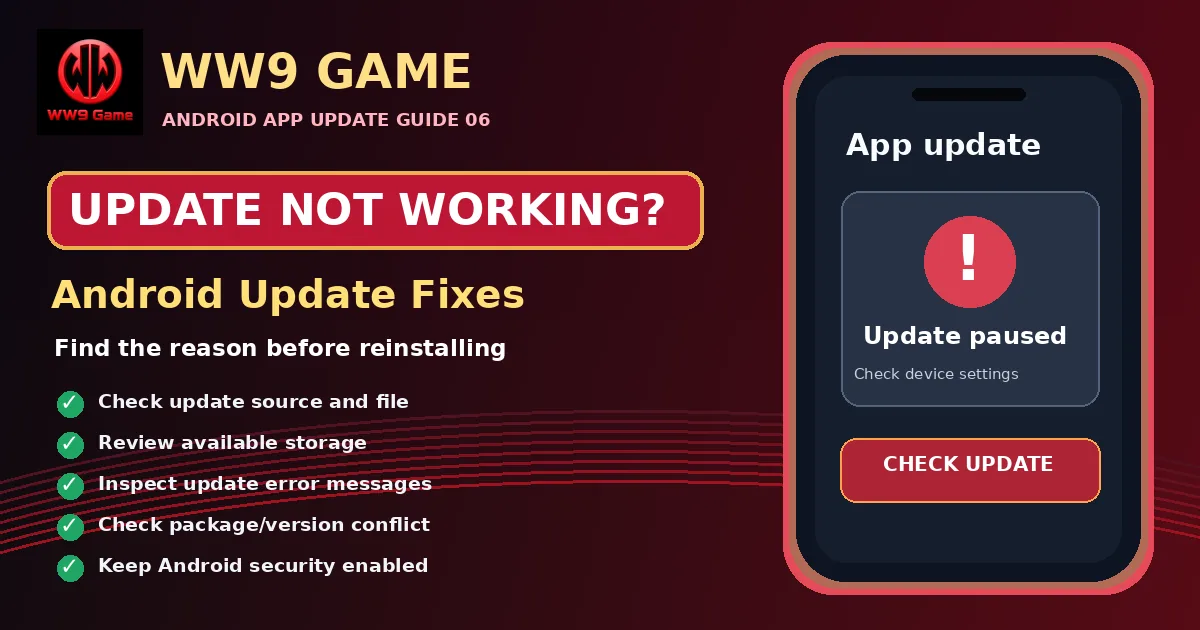
Different update errors require different checks. Start with what Android actually displays.
- Update does not start: No new file or progress appears.
- Update stops midway: The download is incomplete or interrupted.
- App not installed: The file downloaded but Android could not replace the existing app.
- App opens but still shows an old version: The update might not have been applied.
- Security warning: Android has identified a potential risk or a permission concern.
A download problem, installation conflict and app startup error are separate issues. Read the exact message before changing settings.
1. Verify the App Version and Update Source
Before replacing any installed APK, compare the version on your phone with details from an identifiable, legitimate source.
- Find the installed version in Settings → Apps → WW9 Game, if shown.
- Check the file name and its source instead of trusting a forwarded link.
- A higher version number by itself does not establish legitimacy.
- Do not install a modified or unknown-source package merely because it says “latest.”
App details shown on websites may become outdated. Check the information available for the specific file.
2. Check Whether the Update Download Completed
An incomplete update file cannot reliably replace an installed app.
- Open the browser’s Downloads page.
- Look for interrupted, pending or failed status.
- Check if the file exists in your device’s Downloads folder.
- Confirm the network was stable during the transfer.
For transfer-specific issues, read WW9 APK Download Not Completing?.
3. Review Available Storage
Updates can require more free space than the final APK file because Android needs temporary working room.
- Open Android Settings → Storage.
- Review warnings about low space.
- Remove only files and apps you no longer need.
- Do not delete personal information or account data without a backup.
4. Understand Existing App and Package Conflicts
Android may reject an update when it cannot safely replace the existing application.
- The new package may have a different signing identity.
- The package may be incompatible with your Android version.
- The downloaded file may be damaged.
- The update may use a different package format.
An unexpected signature or package conflict can mean you are not receiving an authentic update. Verify the source instead of removing the original app immediately.
5. Review Android Security Prompts
Android can ask permission for installing apps from a particular source or may flag an untrusted file.
- Read the entire on-screen warning.
- Confirm the package origin independently.
- Keep Play Protect and other security checks enabled.
- Stop if you cannot establish the source’s legitimacy.
Security restrictions are not update errors to be bypassed automatically.
6. Check APK and Split-Package Format
Not every Android application is distributed as a single standard APK file.
- Look at the downloaded file extension.
- Do not rename an XAPK or split package to .apk as a workaround.
- Confirm the installation method is appropriate for the legitimate package.
- Do not use unfamiliar installers from links shared through messages.
7. Restart the Device and Review Android Updates
Temporary system errors can interfere with an otherwise valid update.
- Restart the phone using its normal Restart option.
- Check Android system update settings.
- Confirm the device is sufficiently charged.
- Retry only after reviewing the file and error message.
Menu names may vary between Android manufacturers.
8. Clear Temporary App Cache Carefully
If the existing app opens but behaves incorrectly after an update attempt, temporary cache files may contribute to the problem.
- Open Settings → Apps.
- Select the installed WW9 Game app.
- Open Storage & cache, if available.
- Choose Clear cache, not Clear storage.
Clearing cache removes temporary files. Clearing app data may remove local settings and sign-in details. Do not clear data unless you understand the consequences.
9. Review Battery and Background Restrictions
Some phones pause large transfers when a browser runs in the background or the device enters a restrictive power mode.
- Check whether a browser download is paused.
- Review Data Saver, Battery Saver and Wi-Fi restrictions.
- Use normal Android settings; avoid third-party “update booster” apps.
- Do not confuse a paused download with a failed installation.
10. Before Considering Reinstallation
Uninstalling an app can erase its local data or make account access difficult.
- Verify that you can still access your account through legitimate methods.
- Review the exact installation error.
- Confirm the new APK’s authenticity and compatibility.
- Back up important information where possible.
- Do not uninstall a working version solely because an unknown site suggests it.
For installation errors, see WW9 APK Not Installing?.
11. If the App Still Will Not Open After Updating
An update issue may be resolved while a separate launch problem remains.
- Check for the app’s exact error screen.
- Confirm the phone has a working network connection.
- Read WW9 Game Not Opening? for startup checks.
- Use App Keeps Crashing? if the application closes unexpectedly.
12. Prepare Details for Technical Support
If a verified support channel is available, the following details can help explain the problem:
- Phone model and Android version.
- App version shown before the update attempt.
- File extension, browser and download status.
- Exact Android error text.
- Whether it is a download, installation or launch problem.
Do not share passwords, OTPs or banking details while reporting a technical problem.
Frequently Asked Questions
Why is the WW9 app update not installing?
Possible reasons include an incomplete file, insufficient storage, package incompatibility, an app-signing conflict or a security warning. Read the exact Android error before taking further steps.
Can I update WW9 Game without uninstalling it?
An Android package can sometimes update an existing installation, but this depends on compatible package and signing details. An unexpected conflict should be investigated rather than bypassed.
Will clearing the WW9 app cache delete my account?
Clearing cache usually removes temporary local files. Clearing app storage or uninstalling may remove local settings or login information, so treat those as different actions.
Should I disable Play Protect if an update is blocked?
No. A security warning deserves investigation. Verify the application source and do not disable protections merely to force an APK to install.
Why does the old version still appear after downloading an update?
Downloading a new file does not automatically mean the installed app has been updated. Confirm whether Android completed a legitimate installation and check the installed version.
Final App Update Troubleshooting Checklist
- Read the exact error and identify the failed stage.
- Confirm the source and installed version details.
- Review network and storage conditions.
- Check file format, package compatibility and Android prompts.
- Keep security protections enabled.
- Back up important information before any uninstall.
Related topics: APK Download Problems · APK Installation Problems · Trust & Safety.