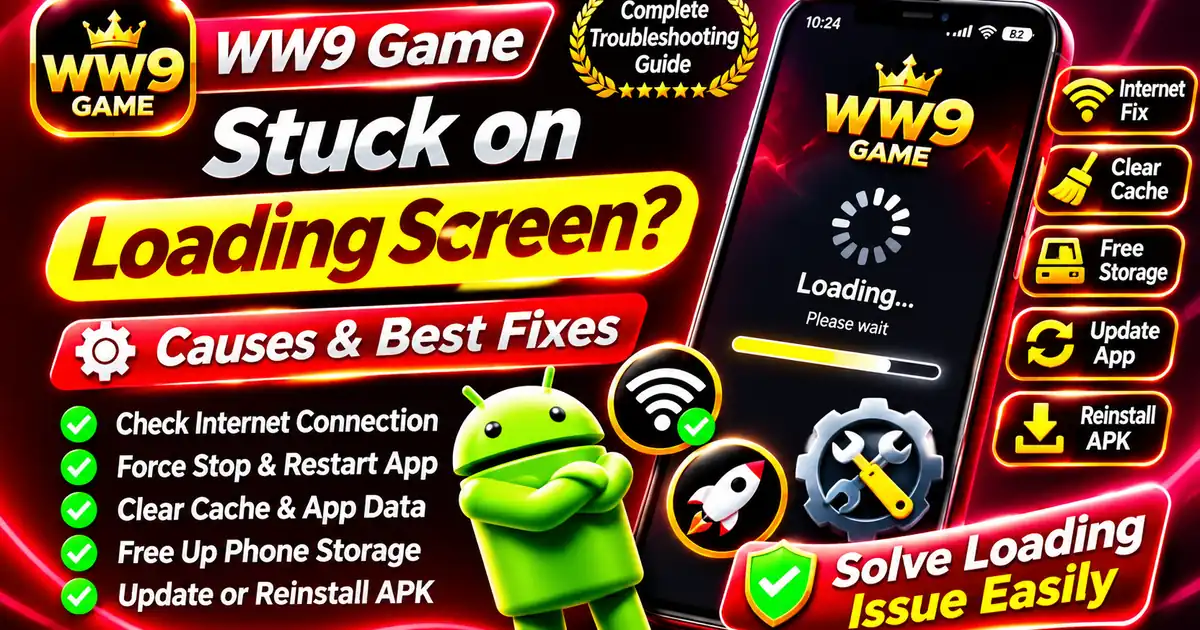
Identify the WW9 Game Loading Problem
First note exactly what happens on the screen. Different symptoms suggest different checks.
- Spinner never finishes: The loading indicator continues without opening the next screen.
- Progress bar stops: Loading begins, but the indicator remains at the same point.
- Blank or dark screen: The app opens but no usable interface appears.
- Loading only on one network: The issue appears on Wi-Fi but not mobile data, or vice versa.
- Returns to Android home: That may be an app crash rather than a loading delay.
Do not assume a stalled screen means your account has been blocked. The display alone does not establish the cause.
1. Test Internet Connectivity
An app may wait for online resources while Android still shows a loading animation.
- Open a trusted website in your browser.
- Check whether the page loads without repeated interruptions.
- Compare normal Wi-Fi and mobile data, if available.
- Retry WW9 Game after the connection becomes stable.
- Other sites also fail: Check your internet or router first.
- Only one app fails: Continue with Android and app checks.
2. Force Stop and Reopen the App
Closing a stalled session can help clear a temporary startup issue.
- Remove WW9 Game from the recent apps screen.
- Open Settings → Apps → WW9 Game.
- Select Force Stop if the option is available.
- Open the app again and observe how far it loads.
Force Stop ends the current app process; it is not the same as deleting app data.
3. Restart the Phone
A regular Android restart can resolve temporary network or system process issues.
- Use your phone’s standard Restart command.
- Allow Android to finish starting.
- Check a browser page before reopening WW9 Game.
- Note whether the loading problem repeats at the same stage.
4. Clear Temporary App Cache
Old or corrupted temporary resources can sometimes interfere with startup.
- Go to Settings → Apps → WW9 Game.
- Open Storage or Storage & Cache.
- Choose Clear Cache, when available.
- Reopen the app and test its loading behaviour.
- Clear Cache: removes temporary local files on most Android devices.
- Clear Storage / Clear Data: may erase local preferences, downloads and sign-in information.
Try cache clearing before any action that may remove account access or locally stored information.
5. Check Free Storage and System Resources
Very low available storage or heavy background activity can interrupt an app while it loads resources.
- Open Settings → Storage and review available space.
- Remove unnecessary files only after backing up important data.
- Close demanding apps you are not using.
- Restart the phone rather than installing unverified “booster” utilities.
There is no single storage amount that guarantees this particular app will load.
6. Check App and Android Compatibility
Incomplete updates or software incompatibility can cause loading problems.
- Check the Android version under Settings → About Phone.
- Review available system updates using Android’s built-in settings.
- Compare the installed app version with information from a source you can independently verify.
- Do not install a modified APK or disregard a harmful-app warning to solve loading issues.
An update may help with compatibility, but it cannot resolve every server or network problem.
7. Review Network Settings Without Disabling Protections
Some network configurations may prevent a service from responding even when general browsing works.
- Check whether the phone is connected to the expected Wi-Fi network.
- Review whether mobile data is restricted for this app in Android settings.
- If your device uses a VPN or private DNS, note whether the problem occurs on other normal connections.
- Keep Android security checks and privacy protections enabled.
A network setting is only one possible factor; avoid changing settings you do not understand.
8. Distinguish Loading Delays from Service Problems
A service-side delay cannot necessarily be fixed from your phone.
- Check whether other Android apps and websites are functioning.
- Note the time the loading problem started.
- Test again later instead of repeating the same installation steps.
- Use an independently verified support source to check for an announced interruption.
The presence of a loading spinner alone does not confirm server maintenance or an outage.
9. Before Reinstalling an APK
Reinstallation is a later troubleshooting option, not the first step for a stalled loading screen.
- Confirm that your login details and account recovery options are available.
- Back up any important locally stored information, if applicable.
- Verify the installation package and its publisher before installing.
- Do not bypass Android malware or harmful-app warnings.
If installation itself fails, see the WW9 APK installation troubleshooting guide.
10. Record the Problem for Technical Support
If the loading screen still does not progress, collect accurate details before contacting a verified support channel.
- Phone brand and model.
- Android version and app version, if known.
- Exact loading message or percentage shown.
- Whether the issue occurs on Wi-Fi, mobile data or both.
- Time of the incident and any error code.
- A screenshot with personal information hidden.
Never disclose passwords, OTPs or recovery codes. Review the Trust & Safety information for account protection.
Frequently Asked Questions
Why does WW9 Game stay on the loading screen?
Possible causes include an unstable connection, temporary app files, limited phone resources, compatibility problems or a service delay. The screen itself does not prove which cause applies.
Can clearing cache help with loading issues?
It may help when temporary cached files are involved. Clear Cache is different from Clear Storage, which may remove local settings and sign-in information.
Is a loading screen the same as an app crash?
No. A loading screen stays visible while the app runs; a crash usually closes the app or returns the phone to the home screen. See the app crashing guide if it closes unexpectedly.
Should I reinstall WW9 Game immediately?
No. Check your connection, restart the app and phone, and review temporary cache and available storage first. Verify the source and protect local data before any reinstallation.
What information helps support investigate a loading problem?
The device model, Android version, installed app version, exact loading message, time of the problem and whether it happens on more than one network can be useful.
Final Loading Screen Troubleshooting Checklist
- Check whether your internet connection works normally.
- Force Stop and reopen WW9 Game.
- Restart Android.
- Clear temporary cache without erasing stored app data.
- Check available space, background activity and system updates.
- Record the exact symptom if the issue continues.
Related help: WW9 Game Not Opening · App Keeps Crashing · APK Not Installing.