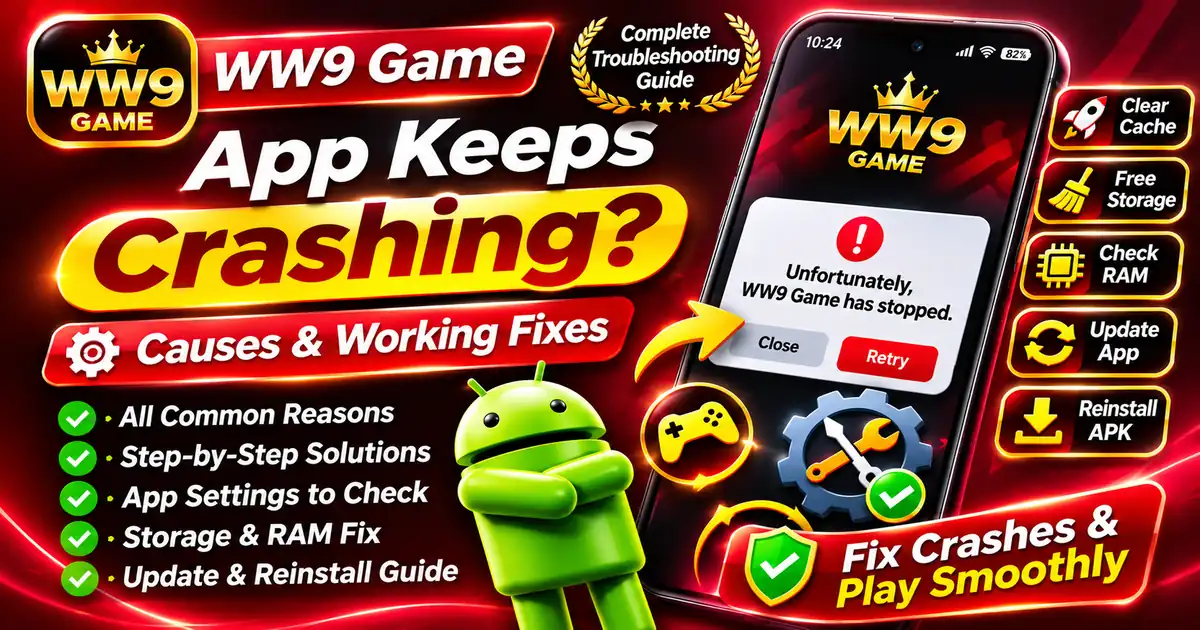
WW9 Game Crash Symptoms: Identify the Problem
App crashes do not always look the same. Note exactly when the problem starts.
- Crashes immediately: The app closes as soon as it is opened.
- Closes after loading: The home screen appears briefly, then disappears.
- Freezes before closing: Buttons stop responding and Android returns to the home screen.
- Stops during navigation: The problem occurs on a specific menu or screen.
- Shows a system dialog: Android displays a message such as “App keeps stopping.”
The timing and exact error are useful clues; they do not prove any single cause.
1. Force Stop and Reopen the App
Start by clearing the current app session without deleting data.
- Close WW9 Game from the recent apps view.
- Open Settings → Apps → WW9 Game on your Android device.
- Tap Force Stop, if that option is available.
- Open WW9 Game again and check whether the same crash returns.
Android menu names differ across phone brands. Force Stop normally ends the running process; it does not uninstall the app.
2. Restart Android and Test Again
A normal restart can remove temporary system conflicts.
- Use the phone’s standard Restart option.
- After restart, allow Android to finish loading.
- Check whether other apps are working normally.
- Open WW9 Game and observe whether it closes at the same point.
If several unrelated apps also crash, the problem may be broader than WW9 Game.
3. Clear Temporary App Cache
Corrupted temporary files can sometimes contribute to a crash.
- Open Settings → Apps → WW9 Game.
- Choose Storage or Storage & Cache.
- Tap Clear Cache.
- Open the app again and test the affected screen.
- Clear Cache: removes temporary files in most Android implementations.
- Clear Storage / Clear Data: may remove local preferences, downloaded resources and sign-in information.
Use the cache option first. Do not erase app data unless you understand the consequences and have a reliable way to recover your account.
4. Check Device Storage Space
Apps may become unstable when the device has very little free storage.
- Open Settings → Storage.
- Review the available space, including temporary downloads.
- Back up valuable files before removing anything.
- Remove only unneeded files or unused apps, then retry.
There is no single storage threshold that fixes every Android crash.
5. Check RAM and Background Activity
Low available memory can lead Android to stop an application, especially on older or heavily loaded devices.
- Close large apps you are not currently using.
- Avoid running multiple demanding apps simultaneously.
- Restart Android if the device has been running for a long time.
- Check whether the crash occurs even when WW9 Game is the only active app.
Do not install untrusted “RAM booster” or “crash fixer” APKs; they can introduce additional problems.
6. Check Android and Application Updates
Compatibility issues can appear after system changes or an incomplete application update.
- Check Settings → System → Software Update for your phone.
- Confirm the installed app version in Android app settings, if displayed.
- Use only a publisher source you can independently verify for app-version information.
- Read any compatibility or security warning before changing software.
A new version is not a guaranteed fix; the cause may be unrelated to updates.
7. Check Whether Network Problems Trigger the Crash
Some apps behave unexpectedly when a network response fails. A network issue is not the same as an Android crash.
- Open an unrelated trusted website to check connectivity.
- Try a normal Wi-Fi connection and, if available, mobile data.
- Record whether WW9 Game exits completely or simply stays on a loading screen.
- If it only freezes on startup, see the WW9 Game Not Opening guide.
8. Review Battery and Background Restrictions
Some phones use aggressive battery optimization that can interrupt background processes.
- Review Settings → Apps → WW9 Game → Battery, if available.
- Check whether your phone’s power-saving mode affects multiple apps.
- Do not disable system-wide protections or unrestricted background limits just to address a single crash.
- Compare behaviour in normal battery mode without changing security controls.
Battery settings vary by Android version and manufacturer.
9. Before You Consider Reinstalling
Reinstallation should be a later step, not the first response to an unexplained crash.
- Confirm you can access the account again if local sign-in information is removed.
- Save any important local data or settings where possible.
- Verify the source and integrity of the installation package.
- Keep Android security scanning enabled.
- Stop if the device reports that the package is harmful or untrusted.
If the APK itself will not install, read WW9 APK Not Installing for separate installation diagnostics.
10. What to Record if the Crash Continues
Useful troubleshooting evidence can make an unresolved issue easier to explain to a verified support channel.
- Phone model and Android version.
- Installed application version, if known.
- Whether the crash happens on launch or after a specific action.
- Exact Android crash message.
- Whether it occurs on Wi-Fi and mobile data.
- A screenshot with personal information removed.
Do not share OTPs, passwords, recovery codes or financial details. See the Trust & Safety page for account protection guidance.
Frequently Asked Questions
Why does WW9 Game keep closing automatically?
Possible reasons include temporary app errors, limited device memory, low storage, version compatibility issues or other Android problems. The exact error and when the app closes are useful for diagnosis.
Can clearing cache fix a crashing app?
It can help when corrupted temporary files are involved, but it will not fix every crash. Try Clear Cache before considering any option that erases local data.
Does Force Stop delete my WW9 Game account?
Force Stop normally closes the running app process and does not delete the online account. It is different from Clear Storage or uninstalling.
What if the app crashes only on one screen?
Note the screen, action and any message. Test after a restart and cache check. A screen-specific error may need investigation by the app publisher.
Should I reinstall the APK every time the app crashes?
No. Check the crash symptoms, restart the phone, review storage and updates, and clear cache first. Reinstall only after protecting local data and verifying the package source.
Final Crash Troubleshooting Checklist
- Identify when WW9 Game crashes.
- Force Stop and reopen the app.
- Restart Android and check other apps.
- Clear temporary cache without erasing app data.
- Review free storage, RAM pressure and updates.
- Check the error before considering reinstallation.
Related guidance: App Not Opening · APK Installation · Privacy Policy.