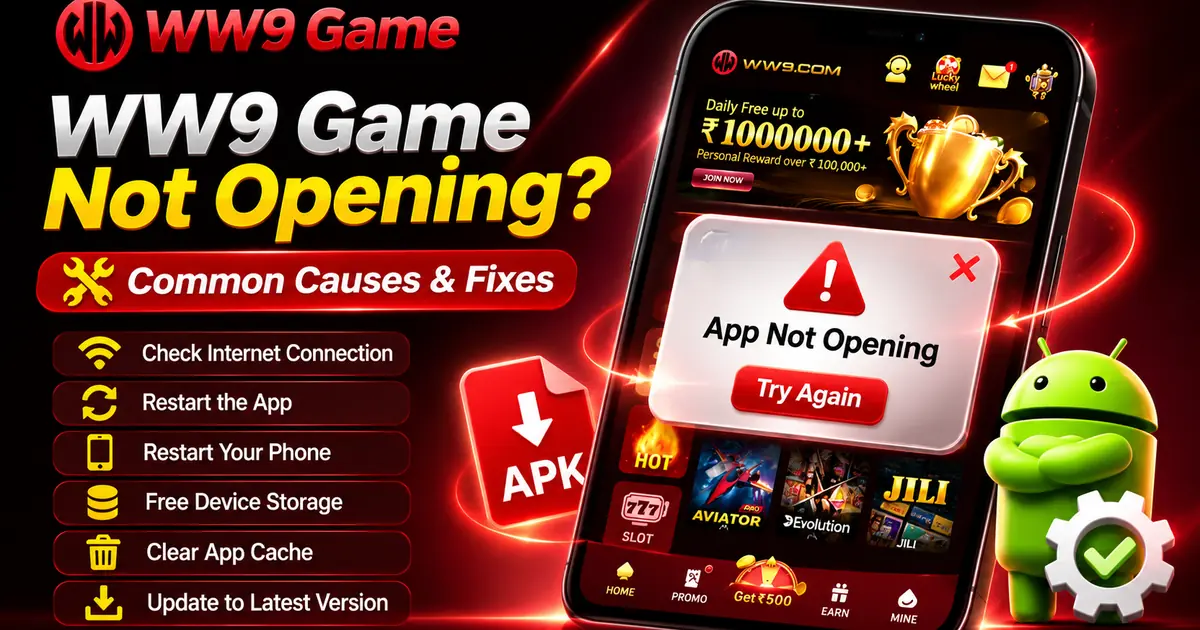
Why Is WW9 Game Not Opening?
An Android application may stop responding when it cannot complete its startup process. This does not necessarily mean the app is permanently unavailable.
Possible causes include:
- Unstable Wi-Fi or mobile data.
- Insufficient available device storage.
- A temporary app or Android system error.
- An incomplete application update.
- Android compatibility problems.
- Damaged or incomplete installation files.
- Temporary service-side connection problems.
The exact reason depends on the device, installed app version and any error displayed.
1. Check Your Internet Connection
First, confirm your device has a working internet connection.
- Open a trusted website in your mobile browser.
- Check whether it loads normally.
- Switch between Wi-Fi and mobile data if available.
- Reconnect if the network appears unresponsive.
- Try opening WW9 Game again.
If several applications cannot connect, the network may be the issue rather than WW9 Game.
2. Close and Reopen WW9 Game
A temporary application error may prevent normal startup.
- Close WW9 Game completely.
- Remove it from the recent apps screen.
- Wait briefly.
- Open the app again.
On supported devices, you can also use Settings → Apps → WW9 Game → Force Stop. Menu names differ between Android brands.
3. Restart Your Android Device
Restarting can resolve temporary Android system problems that affect app performance. Use your device’s normal restart option. When the phone turns back on, check its internet connection and retry the app.
4. Check Available Device Storage
Very low storage can interfere with application updates and temporary files.
- Open Android Settings.
- Find Storage or Device Care.
- Review available space.
- Remove unneeded files only if necessary.
Back up anything important before deleting personal files or app data.
5. Clear the App Cache
Application cache consists of temporary local files. Clearing it may help with certain loading problems.
- Open Settings → Apps.
- Select WW9 Game.
- Open Storage or Storage & Cache.
- Tap Clear Cache.
- Try opening the app again.
- Clear Cache: Removes temporary local files.
- Clear Data: May remove saved settings and sign-in information. Use it only if you understand the effects and can access your account again.
6. Check for App Updates
Older application software can sometimes experience compatibility problems after Android updates. Compare your installed app version with information from a source you have independently verified.
- Check the app name and publisher information.
- Review Android security warnings.
- Avoid modified or unknown APK files.
- Do not trust a file solely because it is labelled “latest version.”
For the website’s published app information, see the WW9 Game homepage.
7. WW9 Game Stuck on the Loading Screen
If the app opens but remains on its initial screen, it may be waiting for a network response or encountering a startup problem.
- Check the internet connection.
- Restart the app and device.
- Clear temporary cache files if appropriate.
- Record any on-screen error message.
- Check whether other internet-dependent apps function normally.
If the issue persists across multiple working connections, app compatibility or temporary service availability may be involved.
8. WW9 Game Keeps Closing Automatically
If WW9 Game briefly opens and then closes, it may be crashing. Low memory, software problems, incompatible updates or damaged files can contribute.
Restart your phone, close unnecessary background apps and check for legitimate updates. Note whether the crash occurs immediately or only after a particular screen appears.
9. WW9 APK Installation Problems
If the APK has not installed correctly, Android may prevent the application from opening. Causes can include an incomplete download, insufficient space, device incompatibility or security warnings.
Do not disable Android security protections simply to force an unfamiliar APK to install. Confirm the authenticity of the source before taking further action.
10. When Should You Contact Support?
If the app remains unusable after these checks, use a support channel that you can verify independently. Prepare:
- Your Android version and device model.
- The installed app version, if visible.
- The exact error message.
- Whether the problem happens on both Wi-Fi and mobile data.
- Whether the app crashes or remains on a loading screen.
Never disclose passwords, OTPs, recovery codes or complete payment details to someone offering to fix an app problem. See the Trust & Safety information.
Frequently Asked Questions
Why is WW9 Game not opening on my phone?
Possible causes include connectivity issues, temporary app errors, low available storage or compatibility problems. Start with a network check and app restart.
What should I do if WW9 Game is stuck on loading?
Confirm your connection, restart the app and device, then consider clearing temporary cache files. A persistent issue may need verified technical support.
Will clearing the app cache delete my account?
Clearing cache usually removes temporary local files rather than the online account. Clearing application data is different and can remove saved sign-in details or settings.
Why does WW9 Game close automatically?
A crash may result from device resources, software faults, compatibility issues or damaged installation files. The precise cause requires device-specific diagnosis.
Is reinstalling WW9 Game always necessary?
No. Connection checks, restarting Android and clearing cache may help without reinstalling. Be cautious about losing locally stored information.
Final Troubleshooting Checklist
Check the connection, restart the application and phone, review storage, clear temporary cache files when appropriate, and verify the source of any update. If you still see an error, seek help through a channel whose authenticity you have confirmed.
Related information: WW9 Game information · Privacy Policy · Responsible Gaming.